Click on cover images to link to item records in our catalogue.
Showing posts with label Databases. Show all posts

Tuesday, September 20, 2011

Oxford Music Online

Oxford Music Online is a really good resource for students, music lovers, musicians, and

scholars.

This database contains:

  • Grove music – with over 50,000 articles.

  • The Oxford dictionary of music – helpful for subjects.

  • The Oxford companion to music – great for definitions.

The Home page has traditional and contemporary material displayed.

The database is updated every three months. In October an update will have Australian and New Zealand composers included in it.

The database contains:

  • Articles – material is suitable for university level study.

  • Images – these can be used for assignments.

  • Musical examples – these can be downloaded via a plug-in from www.sibelius.com

  • Score sections.

There are two search boxes on the Home page: one at the top right of the screen and another lower down under the welcome blurb. The lower box will allow you to search by source after entering your search term, just use the check boxes to select or unselect the search options. The advanced search gives you more control over your results.

When searching for information with the advanced search, you can choose the following options:

  • Full article text

  • Entry title

  • Bibliographies

  • Contributors

  • Works lists

From the advanced search there are also good help tips on the right side of the screen.

Tools & Resources is really useful and is where you can access:

  • Abbreviations – database abbreviations explained.
  • Essential 20th-Century reading list

  • Index of Opera roles – very helpful, A-Z, hyperlinked through the database.

  • Music timelines – women in music, 100 operatic premiers and contemporary music.

  • Topical guides – periods of music history and women composers.

  • Research resources – very helpful for a music researcher.

  • Guide to musical examples in “Grove Music

  • Online” – here are the Sibelius enabled music examples.

As with our other databases you can print, email and cite your results.

So all you music buffs out there: go for it – have a play – you might surprise yourself!


Vanessa

Friday, August 26, 2011

Contemporary Women's Issues (CWI)

OK so here is one for the girls

– so they say. So ladies, let’s find out all about this database.

The database covers areas such as age, education, employment, health, income, and legal issues for example. The front page of the database is uncluttered and easy to navigate. There is a Full text search box and then four search option buttons:

• Search title and enhanced title

• Article author

• Search full texts and citations

• Book author

There are options to custom design your search such as:

• Date range – from mm/dd/yyyy to mm/dd/yyyy

• Subject area – alphabetical list

• Geographic region – and yes, you can choose New Zealand

• Article type – any, instructional or research etc

• Publication – electronic journal, journal, national newspaper, newsletter and report

• A specific source – there is a huge list with years and an A-Z title list

One of the features that can be useful is that when you get a search result list, you can see at the right of most results the word count.

There is also the ability to use the Ctrl key on your keyboard to multi-select options for your search. For example, you might like to select Australia and New Zealand as geographic regions.

The results are also presented with the most recent at the top of the list. When you go into a result you get a tools option for printing, emailing or downloading the information. Your search terms appear in red text for ease of finding.

At the bottom of the home page you can find a link called “About CWI” and this gives you a very detailed guide on how to use the database, which is most helpful for a first time user.

This database would be helpful to find data to support research in many different areas relating to women, but could certainly by used by men as well.

Vanessa

Wednesday, July 6, 2011

ERIC - Education Resources Information Centre

OK, so here is the database for finding all those bibliographic references (over 1.3 million in fact) for education literature, as well as a growing collection of full text articles. This database covers:

• journal articles

• books

• research syntheses

• conference papers

• technical reports

• policy papers

• other education-related materials

From the “Search Eric” tab your options are: Basic, Advanced or Search the thesaurus. On the right of the search screen is a “Search Tips” box that provides useful help. The Basic search allows you to enter a search term or terms and choose keyword, tile, author, descriptor (subject from the thesaurus) or ERIC number, from a dropdown menu.

The Advanced search option provides more control over the search strategy, for example:

• Full text

• ED/EJ (ERIC document or ERIC journal)

• Peer reviewed

• Publication date (pre 1966 – 2011)

• Publication type

• Education level

One particularly good feature of this database is the “thesaurus” – very useful and you can search it alphabetically or by category. Using the category option you can drill down through subject topic menus to get the broad, narrow, related, and used for terms as well as a scope note. If you choose the alphabetical option you also drill down through the topics. With that description you are sure to find the exact aspect of a subject you are looking for. One thing to note is that the “Thesaurus” does use American spellings such as “catalog”. More records are added monthly to ERIC. PDF of full-text articles can be downloaded. When you have found something of interest you can place it on your “Clipboard”. From the clipboard you can print, email, export citations or save to “My ERIC” for future use. You can search for specific journal titles under “Our Collection” and then “Journal List”.

As a test for New Zealand content, a search for “New Zealand flax” brought up one hit, “Maori chief” found four. ERIC indexes the New Zealand Journal of Adult Learning and New Zealand Journal of Geography. So why not try this database all you students, teachers, tutors and researchers out there.

Vanessa

Friday, June 17, 2011

InfoTrac Onefile

OK, so what does that mean? InfoTrac General OneFile is a database that has a wide subject coverage. You should find something here to support your academic study.

It is a one-stop source for news and periodical articles on a wide range of topics such as: business, current events, economics, health care, law, politics, science, technology, and much more. The timeframe covered is 1980 through to 2011 and it is updated daily.


What does it contain?

  • Full-text titles, images, refereed journals, and hundreds of newspapers.

  • More than 500 travel guides, including hundreds of Fodor's titles

  • The full collection of National Public Radio programs from 1990 to the present, including searchable transcripts

  • Full-text of the New York Times from 1985 to the present, updated daily

  • The ability to translate articles into 11 different languages, helping ESL researchers

  • More than 4,000 full-text titles recommended by Bowker's "Magazines for Libraries"

  • Access to a range of additional new collections created to fill subject-specific curricular needs


How does it work?

You have different search options:

  • Browse by subject or publication

  • “Search for words in” subject, keyword, and entire document with the search box

  • Advanced search You also have a “limit results” option to refine your search:

  • To documents with full-text

  • To peer-reviewed publications

  • To documents with images


When you have your search results displayed, you are shown what category they are in such as magazines, academic journals, books, news, or multimedia.

You can then further sort your results by publication date and relevance.

When you have found a suitable result that you wish to use, you have a “tool box” that enables you to bookmark, cite, download, download mp3, email, print preview, share, access a dictionary and translate.

Give it a go and you might just find that missing piece of information to add that extra authority to your research. The database does contain New Zealand data and information. For further assistance with the databases, please contact any Help Desk.

Vanessa

Wednesday, May 18, 2011

Opposing Viewpoints

Now here is the database for those of you who want different views or debates on topics. This is very good for new concepts or ideas as it covers all the angles. Great for school projects or general research. There is a main search box in the top right of the home page or there are eight headings that you can choose from as follows:
  • Business and Economics
  • Energy and Environmentalism
  • Health and Medicine
  • Law and Politics
  • National Debate Topic
  • Science, Technology and Ethics
  • Society and Culture
  • War and Diplomacy
If you choose the View All option beside a heading you will get a list of subheadings to choose from.
Also under the homepage heading are tabs for Home, Issues, Maps and Resources. The Issues tab will take you to an alphabetical list that you can choose from. If you click on Resources you then see a list of Curriculum Standards and there is one for New Zealand. This leads on to options for drilling down into study topics for age levels.
Down the right of the homepage are the Featured Video and Featured News links.

Vanessa

Wednesday, April 13, 2011

Oxford English Dictionary

Here is the perfect database for all those “word issues” in life – be it a need for a quotation for an assignment, the correct spelling for a crossword answer, or just curiosity about the history of a word. This database is so much more than a dictionary.

From the home page you can:
• Perform a word search in the quick search feature
• Browse the dictionary from A-Z
• Browse categories for words by subject, usage, region, or origin
• Browse timelines to see when a word entered the English language
• Browse sources to explore the top 1,000 authors and works quoted in the OED
• Browse the historical thesaurus of the OED contents
The “Sources” feature is useful because you can click on that option to see the list and then click on a link in blue, for example William Shakespeare, and then you can see from the results that there are quotes from his plays. Then if you click on Hamlet, for example, you will be taken to an alphabetical word list of results and then from there you can click to see a quotation from the play. You also will see other quotations that use the same word.
When you choose to click on “Historical thesaurus” you get a choice of three headings: the external world, the mind, and society. You then see a list of subheadings to choose from. These further sub-divide and each step you go down shows the link to the previous list. From the home page there is also “This month’s feature”. This is useful for seeing what is new to the site.

Also on the home page there is:
• A “word of the day” feature
• A list of newly added words. Words are embedded frequently; for example “podcasting” is now included
• A list of helpful resources

Overall, there is a huge amount of information on the site but it does take a bit of drilling down to access it. All you budding etymologists will enjoy!
To access this go to our “Databases”. Scroll down the alphabetical list and click on the “Oxford English Dictionary” link.

Vanessa

Friday, March 11, 2011

Heath and Wellness Resource Centre

No I’m not hinting that you are all unwell – merely pointing out another one of our databases for you to check out!

Important note:

Something that is very important to remember when using this site: it is not intended to replace any medical specialist or to self-diagnose; it is simply an information tool.

This database is well laid out with an easy to see bright green search box. There are nine tabs across the top of the web page: Home, Diseases & Conditions, Alternative Medicine, Drugs & Herbal Remedies, Directories, Dictionary, Trusted Sites, Health Assessment, and Advanced Search. The web page is then divided into six sections for ease of information finding; Diseases and Conditions, Search, Find Drugs and Herbal Remedies, Topics in the News, Search Directories and Health Highlights. Diseases and Conditions will allow you to choose from a selected list or choose from an A-Z.

The Search box allows you to select Keyword, Subject or Entire Document and also Full Text Articles, Consumer Health and Refereed Publications, also en EspaƱol if you so desire. The search results are then listed with further option tabs to narrow down the result list – Books & Fact Sheets, Magazines & Journals, Drugs & Herbal Remedies, Pamphlets, Video and News. When you have selected an article, for example, you then have the option of printing, emailing or downloading it.

The Dictionary tab will take you to Mosby's Medical, Nursing and Allied Health Dictionary. The Trusted Sites tab has links to numerous useful, “trusted”, external websites, including: Medline Plus Australian and New Zealand medical websites Clinical trials Evidence-based medicine Government databases and websites Medical information in foreign languages The Health Assessment tab is a collection of calculators and risk assessment tools that enable you to collate relevant data across many health areas – but remember that this is an exercise only and to take a commonsense approach to the results. Overall as an information tool, this is an easy to use and interesting database. So give it a go – remember there is 24/7 access to it with your Library card number.

Vanessa

Thursday, December 2, 2010

Breakout and Fundview

Yes it’s nearly the end of the year and you may have plans for academic study or maybe you are seeking support for a voluntary group for 2011. Is that important financial backing what’s holding you back? Have you heard of Breakout and Fundview?

Here is the perfect solution for all of you who are seeking funding as an individual or as a part of a group. These are both comprehensive databases that provide details of various institutions and organizations that provide money for scholarships and voluntary group/team activities.

Go to www.ilibrary.co.nz and click on Databases.

Breakout: This is the option for individuals.

This database provides access to information on over 2000 awards, scholarships, and grants. This database may be accessed in library or from your home – click on the appropriate link.

Fundview: This is the option for voluntary organisations seeking funding and contains over 600 different funding sources.

This database may be accessed in library or from your home – click on the appropriate link.

All that is required is that you answer the criteria questions to build your profile. Then ask the database to complete the search and it will cross-reference your profile with all the options and you will be provided with a list of possible funding sources.

Both Breakout and Fundview have calendars and alphabetical lists of the funding organisations. The calendar lets you see the closing date for the funding applications. Some of the criteria factors can be age, geographic location, gender and nationality.

One of the most important things to note when gathering the funding opportunities from the databases is the “application close by date”. They all vary.

When you have generated a list of possible funding organisations you can then print off the results. There are no guarantees that your application will be successful but, as the old saying goes, “nothing ventured, nothing gained” - so why not give it a go!

Article by Vanessa.

Thursday, November 18, 2010

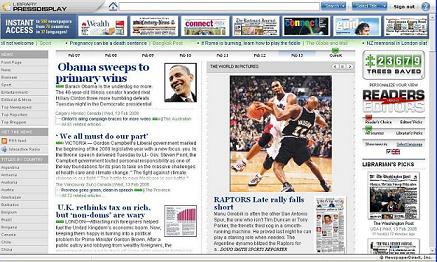
Library Press Display: Read all about it!


So what is “Library Press Display” you ask? Well, it is an online database that provides you with access to a range of newspapers. To access this database there is a link to choose for either “in the library” use or home use. If you are in the Library you will be connected to the database main page.
From the home use link you will b e prompted to enter your library card number . This is the eight -digit number located on the reverse of your library card (under the barcode), beginning with the numbers 200. After you enter the number you will then be given access to the database main page. From the main page you can then choose from the extensive range of newspaper titles available. There are daily national and international titles to choose from as well as weekly newspapers and tabloids. You can choose a paper by country, language or alphabetically. Navigation aids are on the top, bottom and right hand side of the screen within the database. The first page of the newspaper shows as a single page and then the second and third show as a doublespread as with the hard copy paper. If you are searching within the New Zealand newspaper titles you will see
that papers that start with the word “the” such as The Southland Times are all listed together alphabetically after the word “the” in the “T’s”. Please remember that as comprehensive as the database is, not all newspapers are included, for example, the Otago Daily Times is not included. From within the operational features of the database you can email or print off pages or articles. You have the ability to use the magnification tool to decrease or increase
For those people who wish to print off a family notice, for example, you can use the selection tool that puts a red line border around the exact notice that you require and print off just that small piece of text. The newspapers are on a 60-day cycle, so there are approximately two months worth of issues for a particular title to choose from in the issue archive. There is a calendar navigation option that you can use to select a specific issue. A point to note is that the international newspapers all depend on the various time zones for their respective publication times. So bear this in mind when
searching those titles. So go forth and seek out the news to your hearts content. Solve all your current events information needs in one hit and keep informed!

By Vanessa